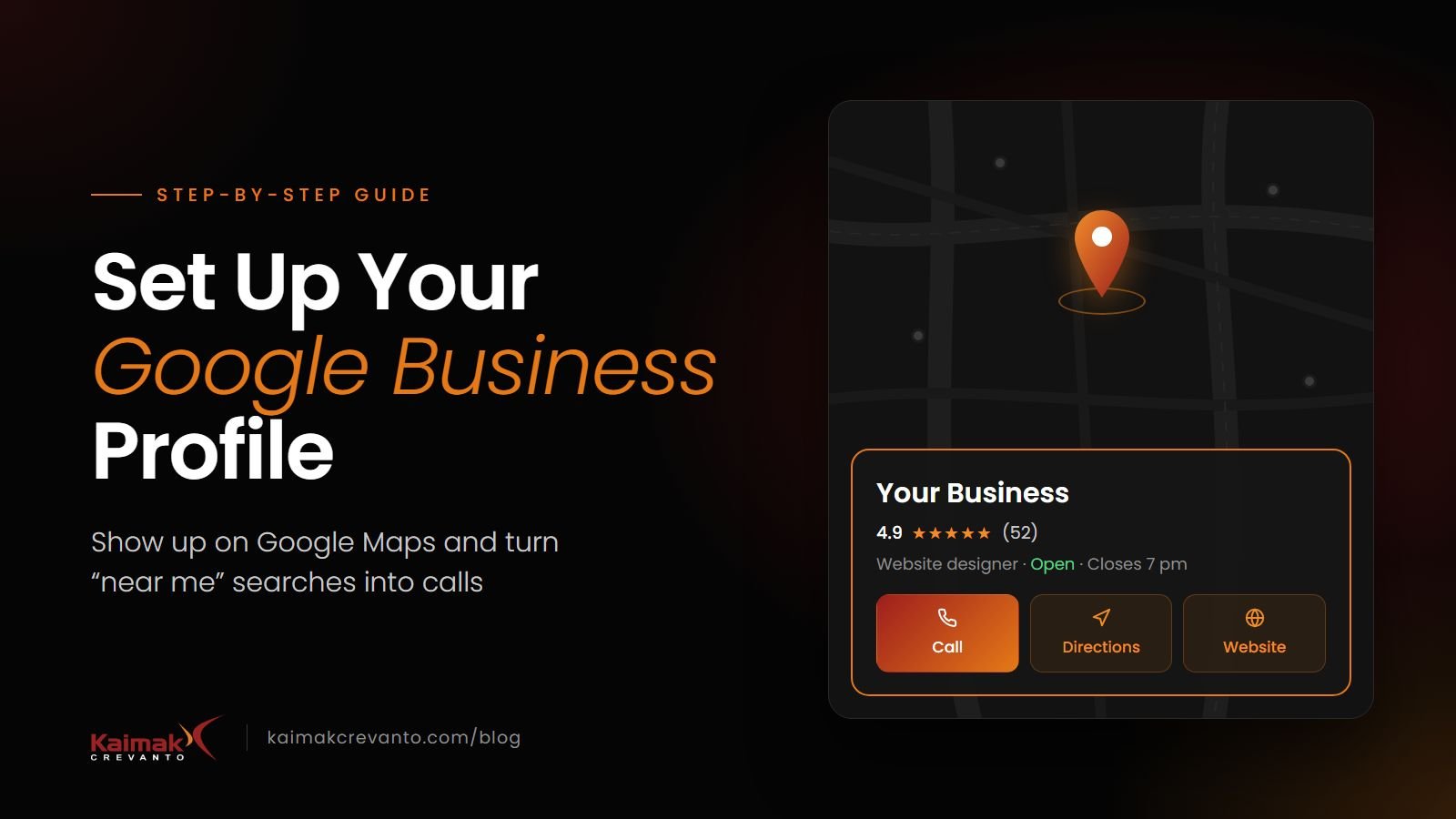
Short answer: a Google Business Profile is the free listing that shows your business on Google Maps and in the box beside search results. Set it up completely, keep your details identical to your website, add real photos and ask every happy customer for a review. Those four things decide most of how often you appear for "near me" searches.
For a local business, this profile often brings more calls than the website itself, because it appears above normal search results. Yet most profiles are half-filled and never updated. Here is how to set yours up properly, step by step.
What is a Google Business Profile?
It is the panel people see when they search your business name, and the listing that appears on Google Maps when someone searches things like "CA near me" or "industrial valves manufacturer in Rajkot". It shows your name, category, phone number, address, hours, photos, reviews and a link to your website.
It is free, and it is managed at business.google.com with a Google account.
Step 1: Claim or create your profile
- Search your business name on Google Maps. If a listing already exists, open it and choose Claim this business (or Own this business?).
- If there is no listing, go to business.google.com and add your business.
- Use a Google account the business owns, not a staff member's personal one. If that person leaves, you don't want the profile to leave with them. You can add staff as managers later.
Step 2: Get verified
Google needs to confirm you are really at that address before your profile shows fully. Depending on your business, it may ask for a short video of your premises, a phone or email code, or a postcard sent to the address.
For a video, show the signboard with your business name, the inside of your office or shop, and something that proves you work there, such as equipment or keys to open the door. Do it in one continuous recording.
Verification can take a few days. Don't change your name or address while it's in progress.
Step 3: Use your exact business name
Enter your name exactly as it appears on your signboard and invoices. Don't add keywords, like "Sharma Traders Best Steel Supplier Rajkot". Google treats that as spam, and competitors can report it. Your services and city belong in other fields.
Step 4: Choose the right categories
The primary category is the most important choice on the whole profile. It decides which searches you can appear for.
- Pick the most specific category that describes your main business, such as "Website designer" rather than "Consultant".
- Add a few additional categories for other things you genuinely do.
- Search your main competitors on Maps to see which categories they use.
Step 5: Fill in every detail
A complete profile is shown more often than an incomplete one. Fill in:
- Phone number that is answered during business hours.
- Website link to your home page, or to a location page if you have several branches.
- Hours, including special hours for festivals and holidays.
- Services or products, each with a short description.
- Business description: what you do, for whom and where, in plain words. You have about 750 characters.
- Service area, if you visit customers instead of them visiting you.
Most important: your name, address and phone number must be written exactly the same way here, on your website and on directories like Justdial and IndiaMART. Small differences make Google less sure the listings belong to the same business.
Step 6: Add real photos, and keep adding them
Profiles with photos get noticeably more calls and direction requests. Add:
- your logo and a cover photo,
- the outside of your office or shop, so people can find it,
- the inside, your team at work, and your products or projects.
Use real photos, not stock images. Add a few new ones every month; it signals the business is active.
Step 7: Get reviews, and reply to every one
Reviews are one of the strongest signals for local ranking, and they are what customers read before they call.
- Ask every happy customer. Copy your review link from the profile (look for Ask for reviews or Get more reviews) and send it on WhatsApp right after a job goes well.
- Make it easy: one short message with the link. Most people are glad to help when asked at the right moment.
- Reply to every review, thanking good ones by name and answering bad ones calmly with how you'll fix it. Future customers read your replies.
- Never buy reviews or offer gifts in exchange. Google removes them and can suspend the profile.
Step 8: Post updates
You can publish short updates on the profile: a new product, a finished project, an offer, a festival greeting. They appear on your listing and show Google the business is active.
One post a week or every two weeks is plenty. Add a photo and a button such as Call now or Learn more linking to the right page of your website.
Step 9: Link your profile and your website both ways
Your profile should link to your website, and your website should point back to your profile:
- put a "Find us on Google" or "Review us on Google" link in the footer or on the contact page,
- embed the Google map on your contact page,
- add your business details as structured data on the website, so Google can match the two.
This connection helps Google trust both. If your website doesn't do this yet, we explain why it matters in How to Get Your Business Website Found on Google and ChatGPT.
Step 10: Check your results every month
Open the Performance section of your profile once a month. It shows how many people found you, which searches they used, and how many called, asked for directions or visited your website.
If calls drop, check that your hours and phone number are still correct, add fresh photos, and ask for a few more reviews.
Common mistakes to avoid
- Keywords stuffed into the business name.
- A different phone number or address from the website.
- A profile created by a former employee that nobody can log in to.
- No photos, or only one blurry logo.
- Unanswered reviews, especially negative ones.
- Wrong hours on public holidays, leading to angry "it was closed" reviews.
A quick checklist
- Profile claimed with a business-owned Google account
- Verified
- Exact business name, no extra keywords
- Specific primary category, plus relevant extra ones
- Phone, website, hours, services and description filled in
- Name, address and phone identical to the website and directories
- At least 10 real photos, with new ones added monthly
- Review link sent to every happy customer
- Every review answered
- Website and profile linked both ways
Want your website to work with your profile?
A strong Google Business Profile brings people to your website. The website then has to convince them to call. Every website we build at Kaimak Crevanto includes matching business details, structured data and a contact page connected to your Google profile. Talk to us if you'd like us to check how yours fit together, or see what we build.